Copying Course History from a Transcript to eSchoolPLUS
Triand allows counselors and registrars to copy past course history on a student transcript from a previous district into eSchoolPLUS at the new/current district.
To view/request a record for a student, click “students” on the navigation bar.

With appropriate access:
Counselors and registrars will be able to view records for students in the state.
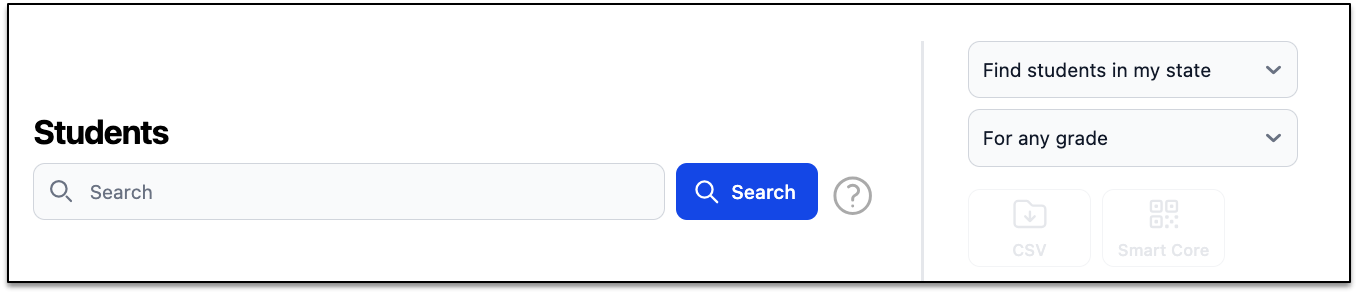
(Note: All student names and IDs are masked with asterisk for training purposes. Users will be able to view this information.)
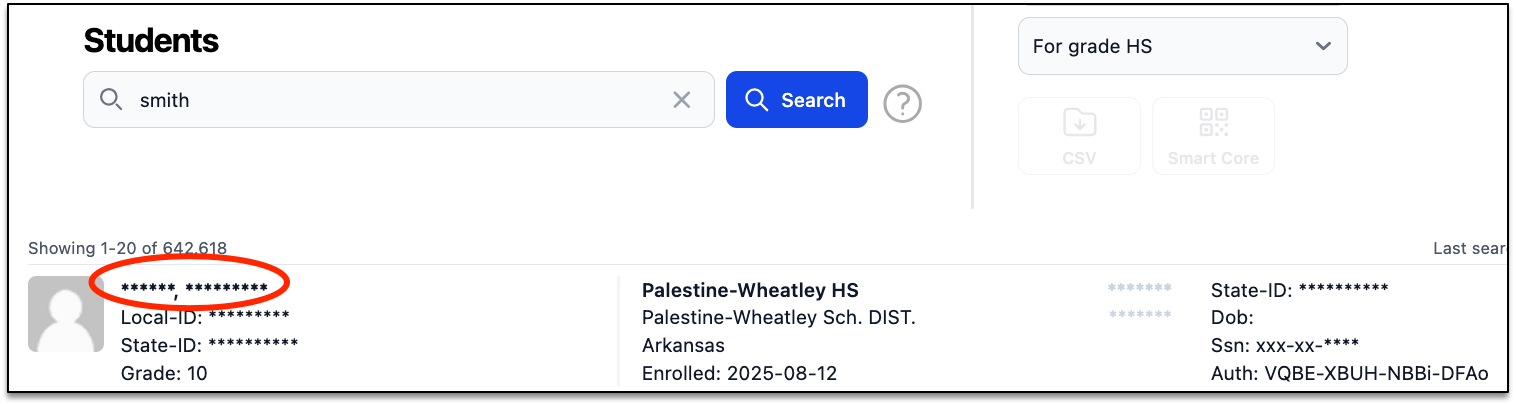
Use the search box to search for the student. When the student appears, click on his or her name.
If this student is a student from your school, the student record/transcript will appear.
If you are viewing a student not in your district/school, you will receive a FERPA Agreement message before accessing the record.
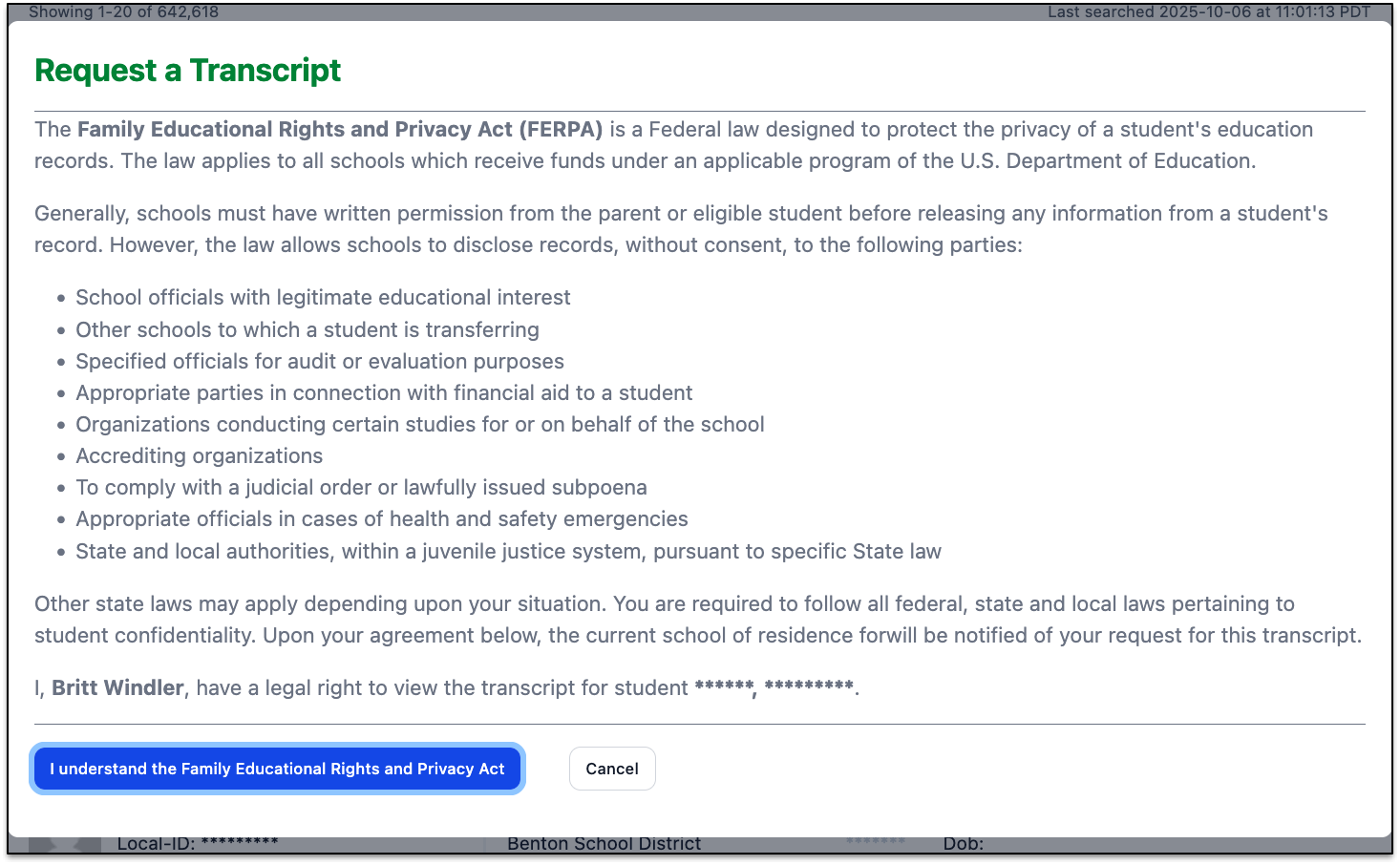
If you intend to officially request the transcript, click “I understand the Family....Privacy Act” and a “Request a Transcript” box will appear:
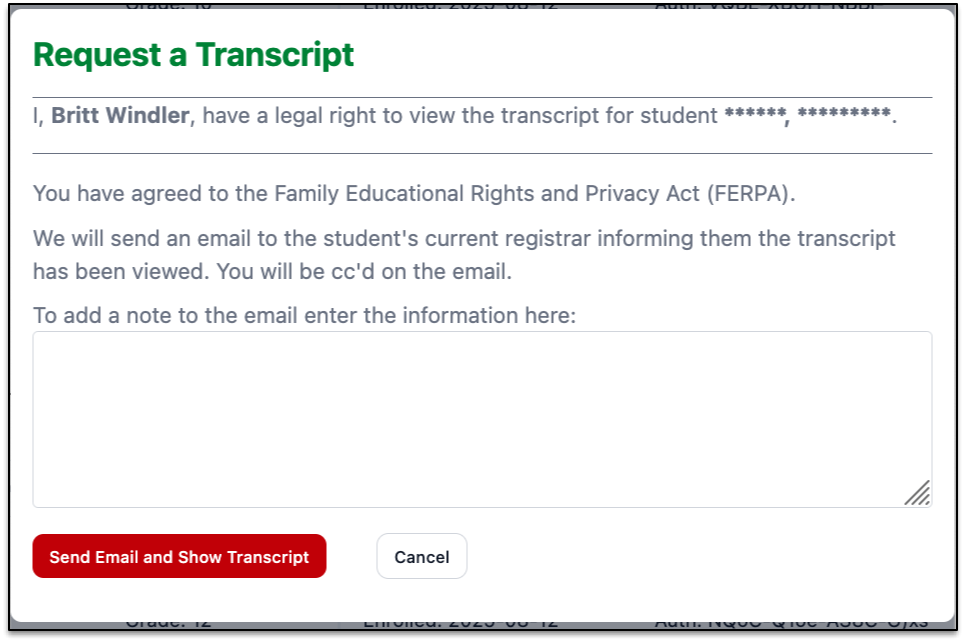
You can add a note to be included with the transcript-request email. Click “Send Email and Show Transcript” and the transcript will appear:
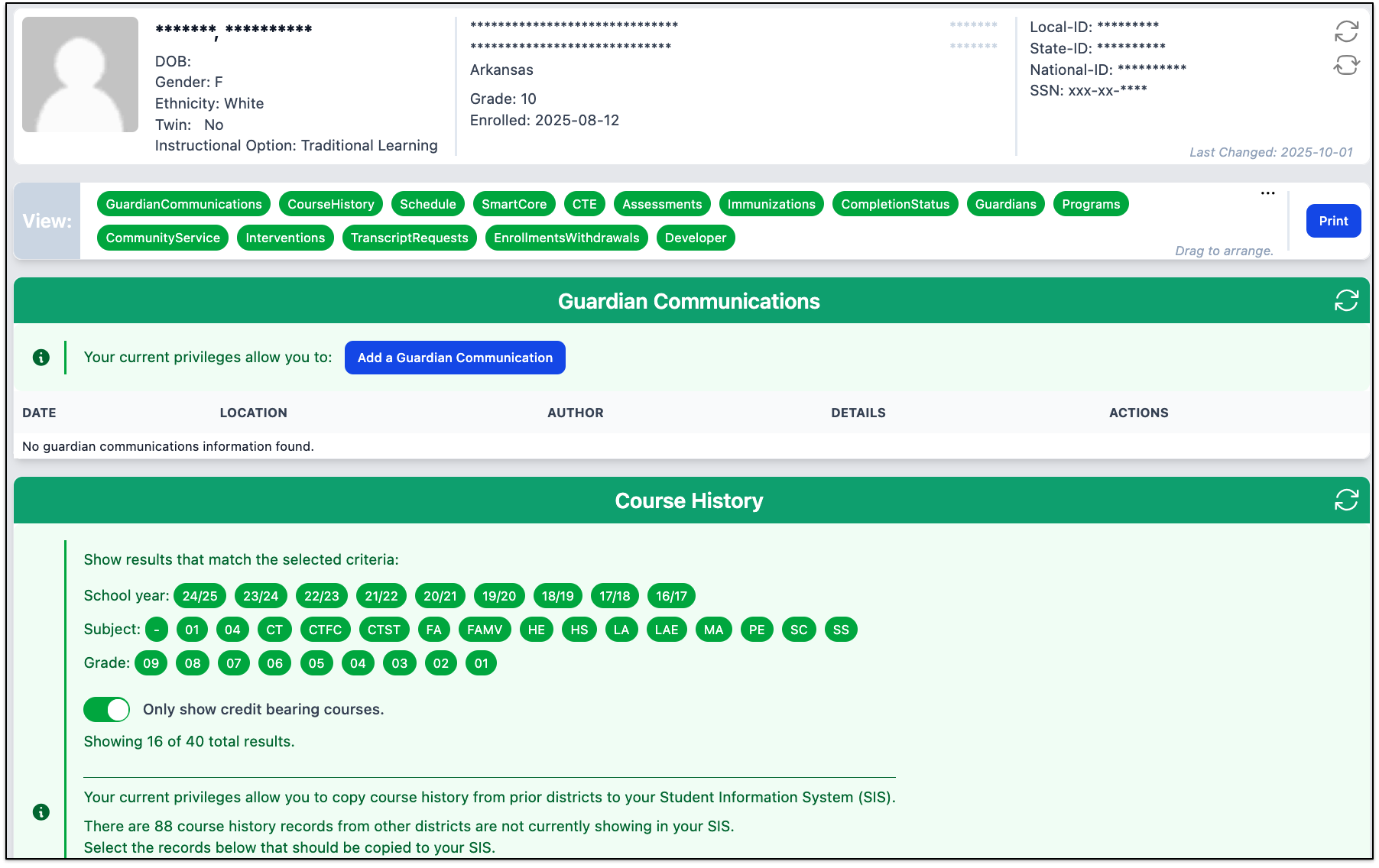
Once you have enrolled the student in eSchoolPLUS, click the “Refresh” button in the Student Information section to update the student’s location, local ID, DOB, and name in Triand without waiting for the nightly connection:

Notice the check boxes to the left of the courses taken at a previous district. For courses you wish to copy from the transcript to eSchoolPLUS at the current district, click the check boxes:
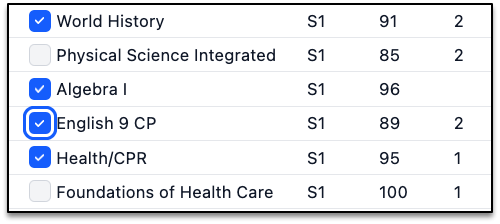
Next, you will click the “Copy selected history” button below the course history section:

A status icon will be displayed as information from eSchoolPLUS is being copied:
Once the information is retrieved from eSchoolPLUS, the Copy Course History box will appear:
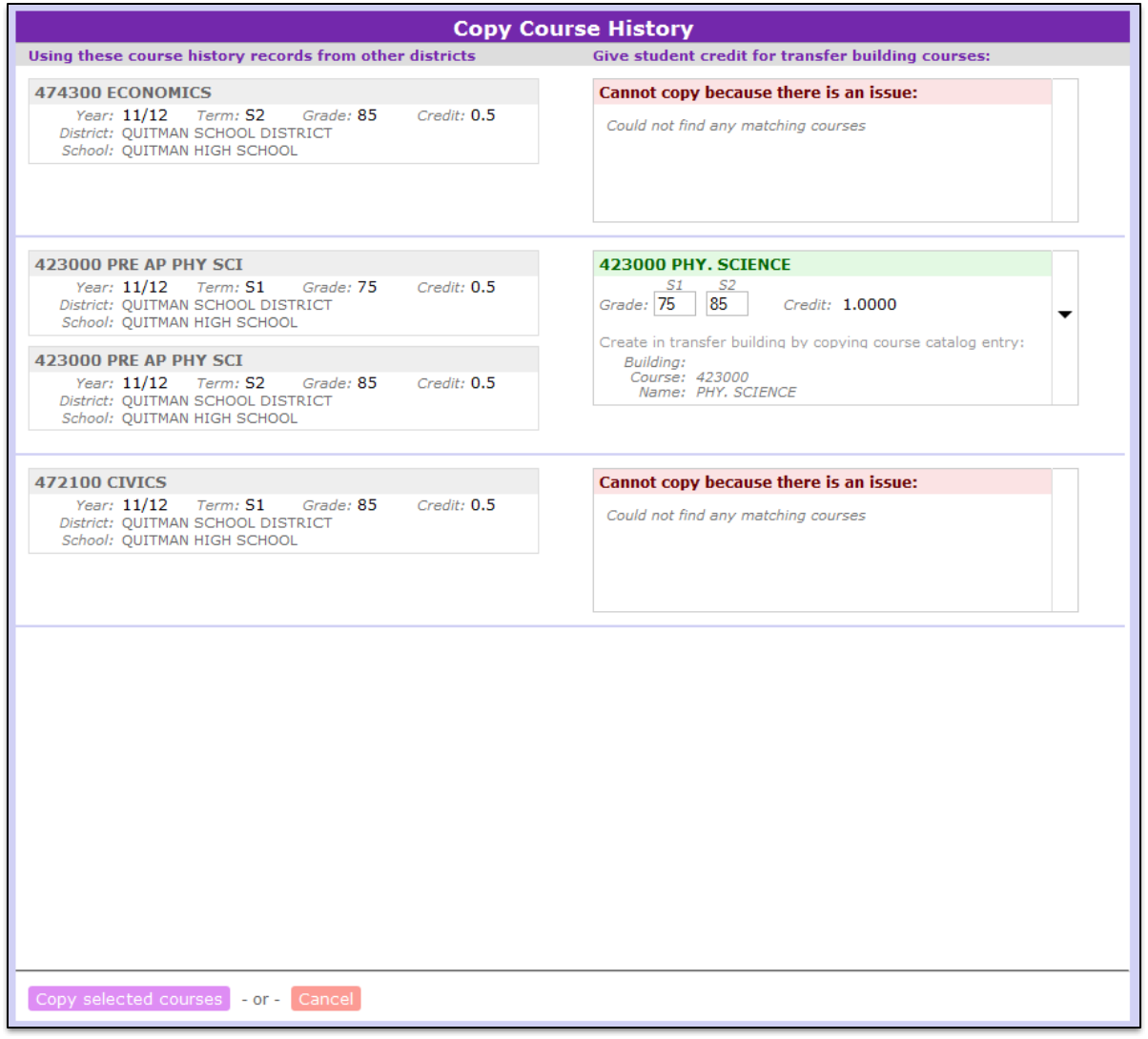
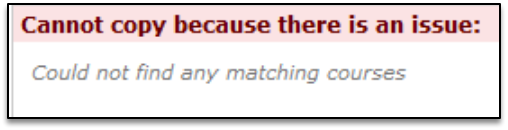
On the left are the courses that were checked on the transcript to be copied. In the second column, you will see a drop-down box that shows matching course names and codes in the current district. If a match cannot be found, a red message appears:
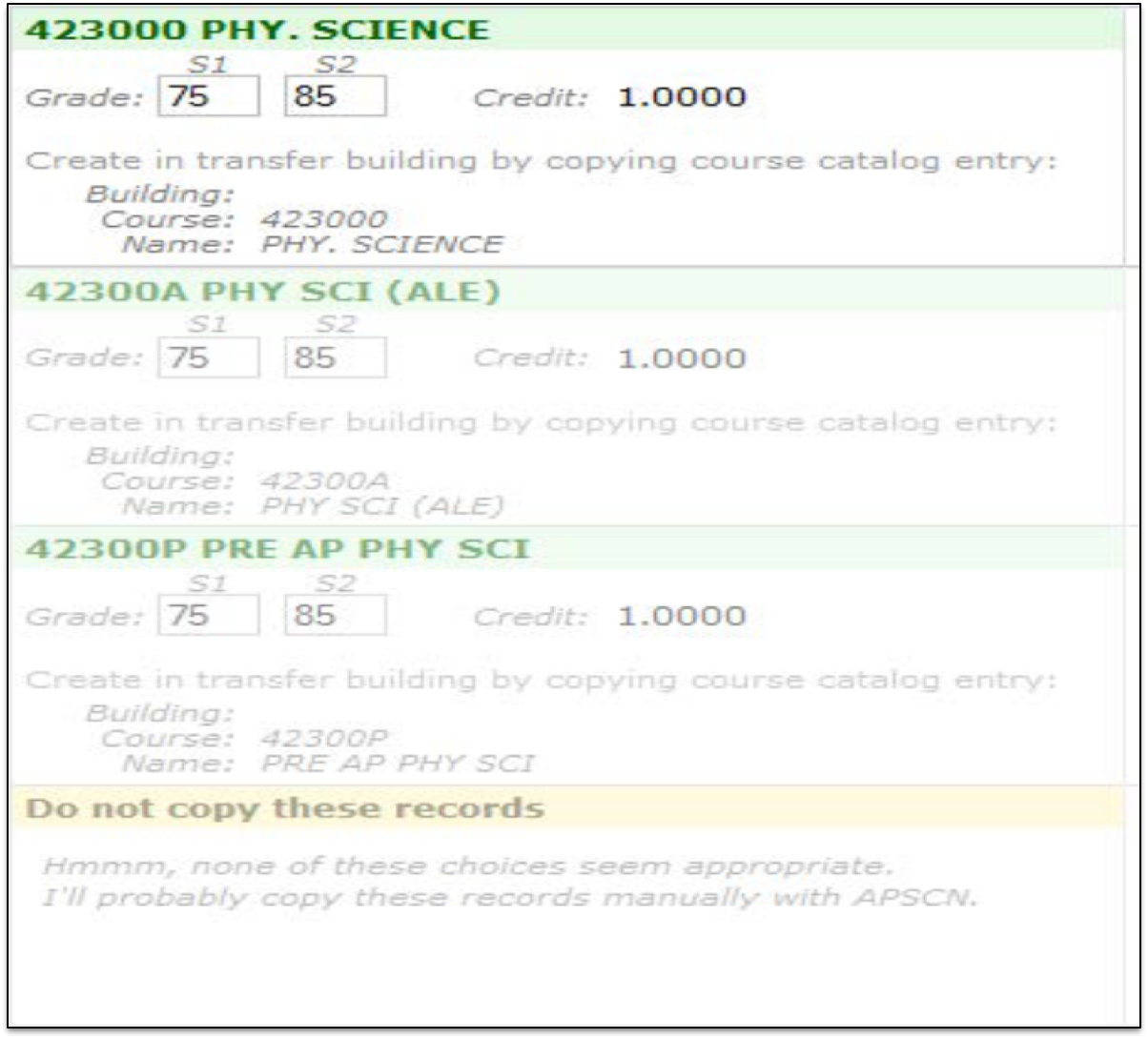
Make a selection from the drop-down for the course you wish to use and make any necessary edits:
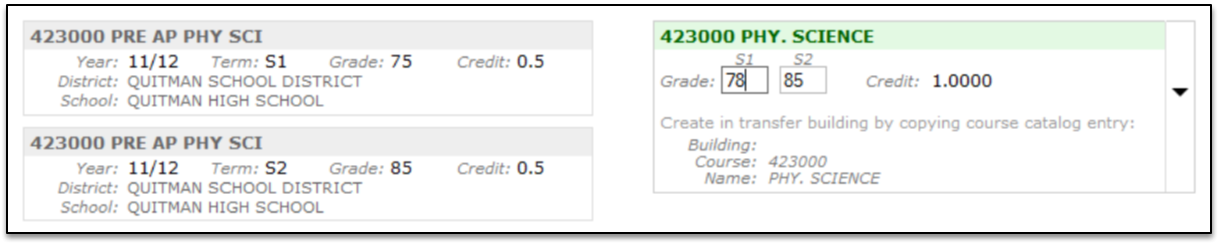
Click the “Copy selected courses” button to copy the courses to eSchoolPLUS, or “Cancel” to abort:

If you choose to copy, you will receive a success message:

Be sure to note: “After the courses are copied the student's GPA must be calculated in eSchoolPLUS. MAIN MENU>MARK REPORTING>ENTRY AND REPORTS>CALCULATIONS>GPA CALCULATION>EDIT TRANSFER BUILDING (EDIT BUTTON)>TRANSCRIPT COURSES (BUTTON)>CHECKED THE GPA BOX AND SAVED THE RECORDS”.